Browser games run on phones and tablets without an app store, a download or an account. You open a page and play. That convenience comes with a few quirks, though: a small screen, a browser interface around the game, and a device that may be juggling many other things at once.
This guide is a practical checklist for getting the smoothest experience when you play Dog Arcade games, or any HTML5 game, on a mobile device. None of it requires special settings or extra software; it is mostly about using the options your phone and browser already have.
Before you start: a quick setup checklist
- Close tabs you do not need. Every open tab can use memory, and some keep running scripts in the background. A game runs more smoothly when it is not competing with a dozen other pages. Background apps that play video or download large files can have a similar effect, so it can help to close those too.
- Check your battery saver. Power-saving modes often reduce performance or limit how often the screen refreshes. If a game feels choppy and battery saver is on, try it with the mode off, if your battery allows.
- Reset browser zoom. If you pinched to zoom on the page before starting, the game area may be cropped or oddly sized. Zoom back out so the whole game fits on screen.
- Turn the volume to a level you want. Every Dog Arcade game has a sound toggle, but your device volume and silent switch still apply.
Portrait or landscape?
There is no single right answer; it depends on the game's shape.
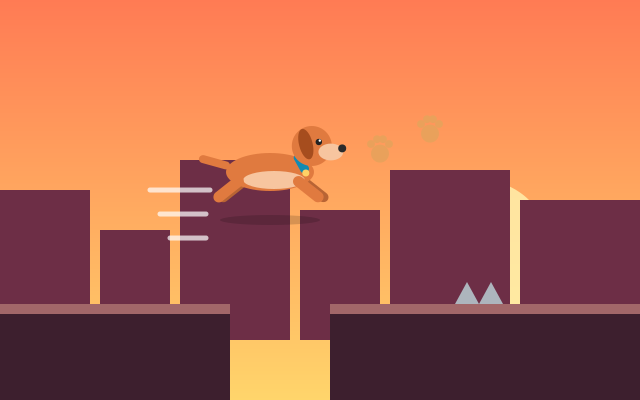
- Side-scrolling games such as Dog Runner, Puppy Adventure and Dog Obstacle Course show more of the course ahead when the screen is wide, so landscape usually gives you more warning.
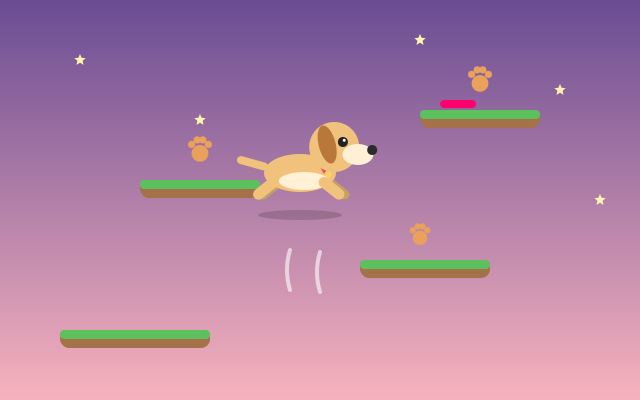
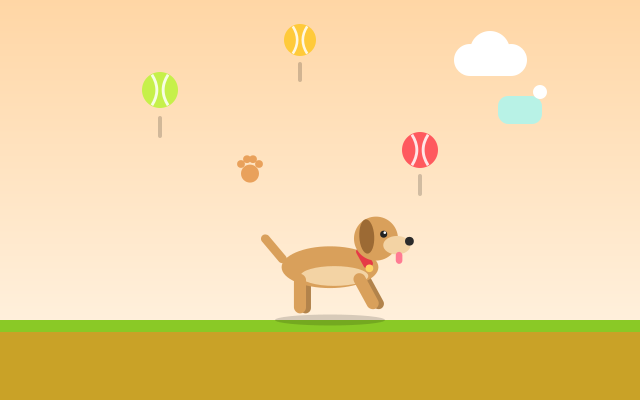
- Vertical games such as Puppy Jump naturally fit a tall screen, and Dog Ball Catch, where items fall from the sky, also benefits from seeing further up.
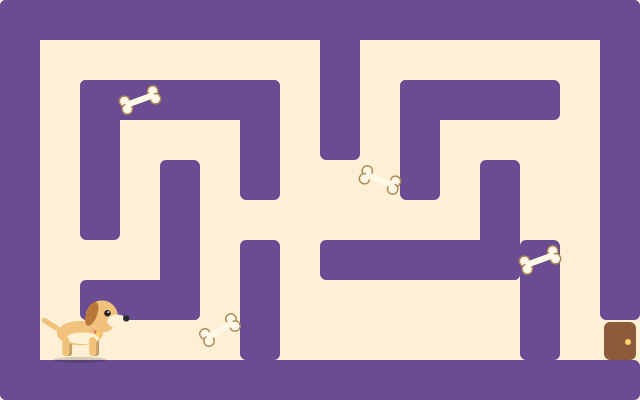
- Top-down games such as Puppy Maze and Bone Collector work either way; pick whichever lets your thumbs rest comfortably on the controls.
If the screen does not rotate, check whether rotation lock is enabled in your device's quick settings. Try rotating before pressing Start rather than mid-run, since the layout may need a moment to adjust. On a tablet, the larger screen gives more room either way, but consider where your hands naturally rest: holding a tablet in landscape often keeps your thumbs close to the on-screen controls.
Fullscreen and browser bars
Mobile browsers show address bars and toolbars that take up space. Some shrink as you scroll, and some browsers support a fullscreen mode for web pages. Where fullscreen is available, it gives the game more room and makes it less likely that a stray swipe hits a browser control.
Another option in many browsers is adding the page to your home screen. This creates a shortcut that can open with less browser interface around it, and makes your favorite games quicker to reach.
Using touch controls well
Every Dog Arcade game shows on-screen touch controls on phones and tablets, and they differ by game:
- Tap to jump: Dog Jump Rush is a fast one-button runner built for phones. Tap to jump, and tap again in the air for a double jump.
- Left and right buttons: Puppy Jump uses left and right touch buttons for steering.
- Drag: In Dog Ball Catch you drag to move the dog, and in Fetch Challenge you drag to aim and set power, then release to throw.
- Swipe or D-pad: Puppy Maze and Dog House Escape accept swipes or an on-screen D-pad.
Hold your phone so your thumbs can reach the buttons without covering the action. If your thumb keeps sliding off a button, try lifting and pressing again rather than dragging across the screen. Our guide to touch controls for HTML5 games explains how these controls work behind the scenes and why they are designed the way they are.
Avoiding accidental interruptions
A few things commonly break a mobile session:
- Notifications: a banner can cover the top of the game or pull you out of the page. A do-not-disturb or focus mode keeps them away while you play.
- Edge gestures: swiping from the screen edge may trigger the system's back or home gesture. Keep swipes toward the middle of the game area.
- Switching apps: when you leave the browser, the game should stop updating. Use Pause first when you can, so you return to a paused game rather than an unexpected situation.
Your scores on mobile
Best scores, favorites and recently played games are stored in the browser you use. That has two practical consequences on mobile:
- Scores set on your phone do not appear on your laptop, and scores in one browser app do not appear in another browser app on the same phone.
- Private or incognito tabs usually discard stored data when closed, and clearing your browser's site data removes saved scores.
If you want to keep a record, play in a normal tab in the same browser each time. The guide to how high scores work explains local storage in more detail.
Good first games to try on a phone
If you are new to playing on mobile, start with a game that has a simple control scheme. Dog Jump Rush needs only taps, Puppy Maze has a forgiving pace, and Dog Ball Catch uses a single drag. Once those feel natural, move on to games that combine controls, like Dog Park Dash with separate Jump and Duck buttons. For games that fit a short break on the go, see our list of puppy games for quick sessions.
Frequently asked questions
Do I need to install anything to play on my phone?
No. Dog Arcade games run directly in a mobile web browser, so opening the page is enough.
Why is the game choppy on my phone?
Common causes are many open tabs, battery saver limiting performance, or other apps working in the background. Closing tabs and turning off power saving often helps.
Will my phone scores show up on my computer?
No. Scores are saved in each browser separately, so a best set on a phone stays on that phone.
Spotted something that doesn't match the game? Tell us through the contact page. Read how we write and check guides in our editorial policy.