A keyboard has dozens of physical keys; a touchscreen has none. Touch controls have to turn taps, drags and swipes on a flat surface into precise game actions, while also keeping the browser from treating those same gestures as scrolling or zooming.
This guide explains the main types of touch control, how browsers deliver touch input to a game, what makes an on-screen button easy to use, and how each style is used across Dog Arcade. If you are more interested in general phone setup, our guide to playing browser games on mobile covers that side.
The four main types of touch control
Tap anywhere
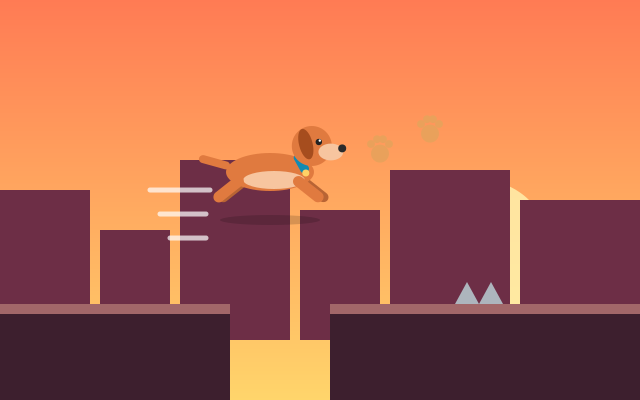
The simplest control is a tap anywhere on the game. It works best for one-action games. Dog Jump Rush is built around this: tap to jump, and tap again mid-air for a double jump. Dog Runner also accepts a tap to jump. Because you do not need to aim for a button, you can keep your eyes entirely on the obstacles.
On-screen buttons
When a game needs more than one action, it shows dedicated buttons. Dog Park Dash has separate Jump and Duck buttons, and Puppy Jump uses left and right buttons for steering. Buttons are predictable: the same spot always does the same thing.
Drag
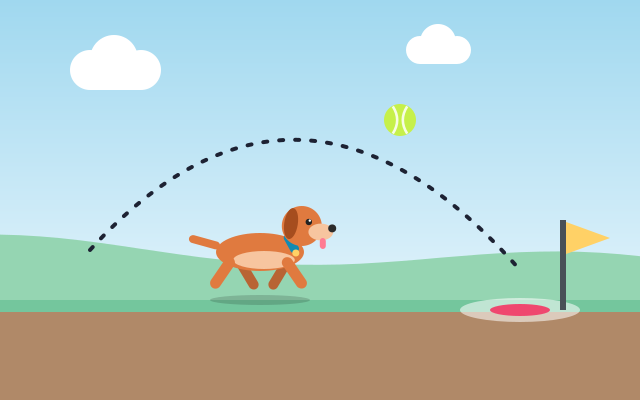
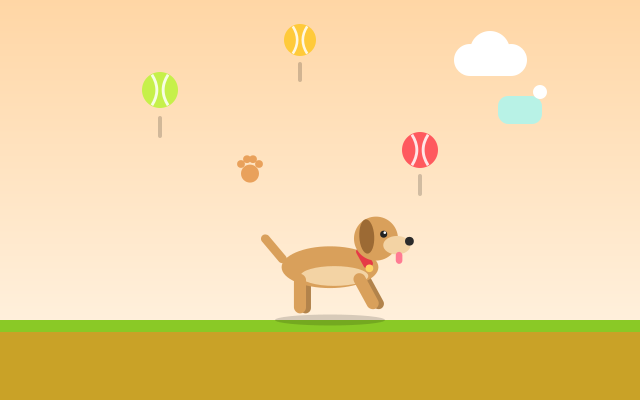
Dragging maps a finger's position or movement to the game. In Dog Ball Catch, you drag to move the dog under falling items. In Fetch Challenge, you drag to set aim and power, then release to throw. Drag controls feel natural for analog decisions like "how far" or "exactly where".
Swipe and D-pad
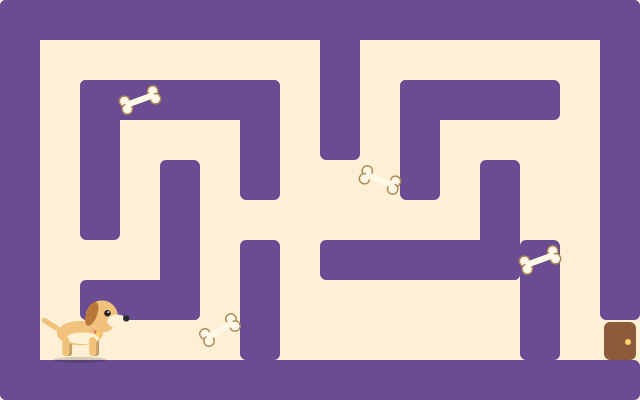
Grid and maze games need clear directional input. Puppy Maze accepts swipes or an on-screen D-pad, and Dog House Escape lets you swipe or use the D-pad to move one tile at a time. Swipes are quick; the D-pad is steadier when you need many small moves in a row.
How the browser delivers touch input
Modern browsers offer pointer events, a single set of events that covers mouse, touch and pen input. A game listens for a pointer going down, moving, and coming up, and reads the position of each. Because each finger gets its own pointer ID, a game can tell apart a thumb on the left button from a thumb on the right one, which is what makes holding a direction while tapping jump possible.
Older touch events still exist and some games use them, but the idea is the same: the browser reports where fingers are and when they start and stop touching. The game then stores that state and the game loop reads it every frame, exactly as it does with keyboard input.
Stopping the page from scrolling and zooming
On a normal page, dragging a finger scrolls, and double-tapping may zoom. In a game, both would be disruptive. HTML5 games tell the browser not to apply those default gestures inside the game area, commonly using the CSS touch-action property and by preventing the default behaviour of touch events there. The result is that your swipes steer the dog instead of moving the page.
Outside the game area, the page still scrolls normally, so you can read the instructions or move to another game. If the page moves while you are playing, your finger may have started just outside the game area.
What makes a touch button easy to use
A button that works well under a thumb has a few qualities:
- Size: it needs to be large enough to hit without looking. Accessibility guidelines commonly recommend touch targets of at least around 44 by 44 CSS pixels, and game buttons are often larger.
- Placement: buttons sit near the bottom corners where thumbs rest, away from the central action.
- Feedback: a visual change when pressed confirms the tap registered.
- Spacing: enough gap between buttons that a slightly off tap does not trigger the wrong action.
Touch versus keyboard: what changes
| Aspect | Keyboard | Touch |
|---|---|---|
| Feel | Physical key travel confirms a press | No physical feedback; rely on visuals |
| Screen space | Controls are off-screen | Buttons and thumbs cover part of the view |
| Analog input | Limited; mostly on or off | Drags give precise position and distance |
| Accidental input | Rare | Palm or edge touches can register |
Neither is better in every game. Drag-based games such as Fetch Challenge can feel more natural on touch, while games with many simultaneous inputs may feel easier on a keyboard. Our keyboard controls guide covers the other side.
Tips for better touch play
- Tap, do not press and slide. For jump buttons, a clean tap registers more reliably than a finger that drifts across the screen.
- Keep your palm clear. Holding the phone by its edges avoids stray touches that can confuse the game.
- Use short swipes in mazes. A short, decisive swipe in one direction is easier for the game to read than a long curving one.
- Lift for drag games. In Fetch Challenge, set your aim and power, then lift your finger deliberately. Releasing is the throw.
- Clean the screen. A smudged screen can make drags feel sticky or jumpy.
When the game pauses itself
On phones, switching apps or receiving a call moves the browser to the background. Browsers slow down or stop animation updates for hidden pages, and games are generally designed to pause when that happens so you do not come back to a lost run. It is still good practice to tap Pause yourself before leaving the page. For more on why this happens, see how HTML5 browser games work.
Frequently asked questions
Why does my swipe scroll the page instead of moving the dog?
Your finger probably started just outside the game area. Inside the game, default scrolling is turned off so gestures go to the game.
Can I use two fingers at once?
Yes. Browsers track each finger separately, so you can hold a direction button with one thumb and press another button with the other.
Do touch controls appear on a laptop with a touchscreen?
The on-screen controls are designed for phones and tablets. On a laptop, the keyboard and mouse controls are the main way to play.
Spotted something that doesn't match the game? Tell us through the contact page. Read how we write and check guides in our editorial policy.