On a laptop or desktop, the keyboard is the most precise way to play browser arcade games. Keys give a clear, physical signal of when you press and release, which matters in games where a jump a fraction too early or late decides the run.
This guide covers the keys Dog Arcade games use, the choice between arrow keys and WASD, how a browser actually reads key presses, and what to do when keys seem to stop responding. It finishes with a few comfort tips for longer sessions.
The keys at a glance
Dog Arcade games share a common set of keys so that moving between games feels familiar:
| Action | Keys | Used in |
|---|---|---|
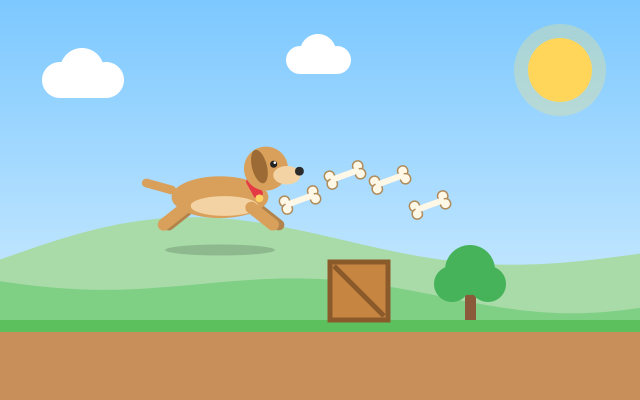
| Jump | Space, Arrow Up (W in Dog Runner) | Dog Runner, Dog Park Dash, Dog Obstacle Course, Puppy Adventure, Dog Frisbee Challenge, Dog Jump Rush |
| Duck | Arrow Down (S in Dog Park Dash) | Dog Park Dash, Dog Obstacle Course |
| Move or steer | Arrow keys or WASD | Bone Collector, Puppy Rescue, Puppy Maze, Dog House Escape, Puppy Jump |
| Pause | P or Esc | All games |
| Restart room | R | Dog House Escape |
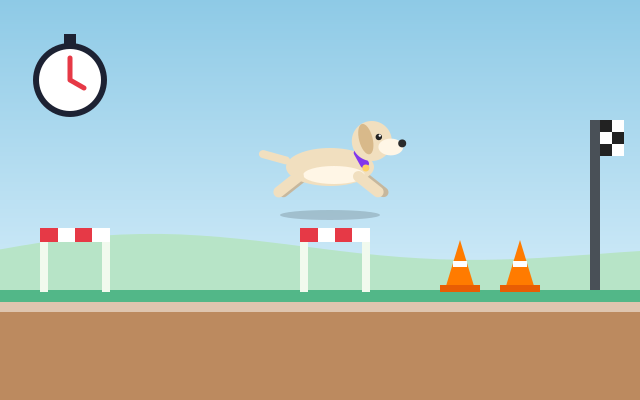
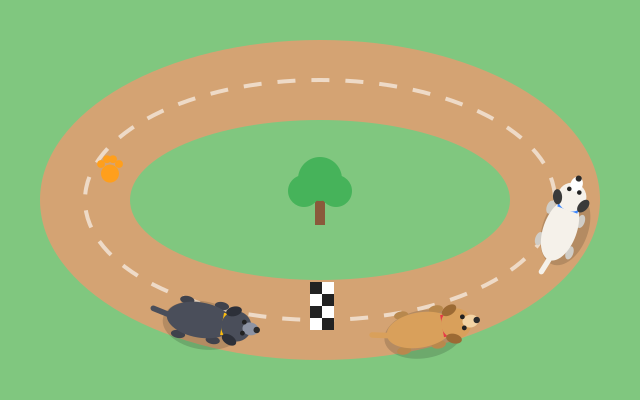
A few games have their own twists. In Dog Race, Up makes the dog run, Left and Right steer, and Down slows you down. In Dog Obstacle Course, Left and Right control your pace, Space or Up jumps, and Down ducks. In Fetch Challenge, the arrows aim and you hold Space to build power. In Dog House Escape, each arrow press moves the dog exactly one tile.
Arrow keys or WASD?
Where both are supported, the choice is about comfort.
- Arrow keys are easy to find without looking and feel natural if you rarely play PC games. The downside is that your hand sits at the far right of the keyboard, away from Space.
- WASD keeps your left hand near Space and leaves your right hand free for the mouse. It can feel strange at first if you are used to arrows.
For a runner like Dog Runner, which accepts Space, Arrow Up and W for jumping, pick one key and stick with it. Switching between keys mid-run is an easy way to mistime a jump.
How the browser reads your key presses
When you press a key, the browser sends the page a keydown event, and when you let go it sends a keyup event. Most arcade games do not act directly on those events. Instead, they record which keys are currently held, and the game loop checks that record on every frame. This is why holding Right keeps the dog moving smoothly instead of stuttering.
Two details are worth knowing:
- Key repeat: if you hold a key, your operating system repeats the keydown signal. Well-built games ignore those repeats for actions like jumping, so holding Space does not trigger a stream of jumps.
- Taps versus holds: a jump usually happens on the press, while movement lasts as long as the key is down. In a tile-based game like Dog House Escape, each press is a single step, so tapping gives you precise control.
The guide to how HTML5 games work explains the game loop that reads these inputs.
Why the page does not scroll when you press Space
In a normal web page, Space and the arrow keys scroll the page. That would be a disaster mid-game, so games prevent the browser's default scrolling for those keys while you are playing. If the page does scroll, it usually means the game does not have focus: click or tap on the game area once, then try again.
When keys stop responding
If a game ignores your keys, work through this list:
- Click the game area. Keyboard input goes to whatever has focus. If you clicked the address bar or another part of the page, the game will not receive key presses.
- Check that the game is not paused. P and Esc pause every Dog Arcade game, and it is easy to hit them by accident.
- Watch for stuck keys. If you switch windows while holding a key, the game may never receive the keyup. Games typically clear held keys when the window loses focus, but if the dog keeps moving on its own, press and release that key once.
- Check your keyboard layout. Some layouts place letters differently. If WASD feels wrong, the arrow keys work the same way in games that support both.
- Too many keys at once. Some keyboards cannot register certain combinations of three or more keys pressed together. If one input seems to vanish while you hold others, try a different key combination.
Matching your grip to the game type
Different games suit different hand positions:
- One-button runners: in Dog Runner and Dog Jump Rush, rest a thumb on Space and nothing else. Fewer keys under your fingers means fewer wrong presses.
- Jump and duck games: for Dog Park Dash, keep a finger on Up and one on Down, or use W and S with your left hand. Having both ready avoids a slow reach when a flying ball follows a fence.
- Top-down movement: in Bone Collector and Puppy Rescue, you will change direction constantly, so keep fingers resting over all four arrow keys or WASD rather than hunting for them.
- Step-by-step puzzles: in Dog House Escape, slow, deliberate taps beat holding keys, and R is there when a room goes wrong.
Comfort for longer sessions
- Rest your hands lightly on the keys rather than pressing down while waiting.
- Use Pause between rounds to stretch your fingers.
- Keep the keyboard straight in front of you so your wrists stay neutral.
Practising with the keyboard
Keyboard control shines in timing-heavy games. Dog Park Dash is a good place to practice switching between jump and duck, since it asks for both in quick succession. Once the keys feel automatic, read our tips on timing jumps. If you also play on phones, compare the experience with our guide to touch controls.
Frequently asked questions
Why does the page scroll instead of my dog jumping?
The game probably does not have keyboard focus. Click or tap inside the game area once so it receives your key presses.
Can I use the mouse instead of the keyboard?
In some games, yes. Dog Runner lets you click to jump, Dog Ball Catch can follow the mouse, and Fetch Challenge supports dragging to aim.
Which key pauses the game?
P or Esc pauses every Dog Arcade game, and on phones and tablets there is an on-screen pause button instead.
Spotted something that doesn't match the game? Tell us through the contact page. Read how we write and check guides in our editorial policy.